Short answer: every screenshot you take is filed automatically into one album. Open Photos → Collections, scroll to Media Types, and tap Screenshots. Tap Select, then drag your finger across the grid to sweep up dozens at once instead of tapping each one, and delete.
That album is the fastest cleanup on an iPhone because the decisions are easy: a screenshot older than a year is almost always a receipt, a code, or a route you no longer need. Work oldest-first, where the hit rate is highest and the risk is lowest. Anything you delete goes to Recently Deleted for about 30 days, so a mistake is recoverable, and the space only returns once that album is emptied. If the album runs to thousands and you would rather look at each one than sweep whole screens at a time, that is the point at which an app earns its place.
Where are screenshots stored on iPhone?
In Photos, under Collections → Media Types → Screenshots. iOS sorts them there automatically the moment you press the buttons — there is no separate folder in Files, and nothing to configure.
They also stay in your main library, so deleting from the Screenshots album deletes the photo everywhere. That is what you want here.
How do I delete a lot of screenshots at once?
- Photos → Collections → Media Types → Screenshots.
- Tap Select (top right).
- Press and drag across the grid — a swipe selects every thumbnail it crosses, which is far faster than tapping.
- Scroll to the oldest year first; those are the safest to clear in bulk.
- Tap the bin, confirm, then empty Photos → Recently Deleted to actually recover the space.
If the album holds several thousand and you would rather look at them one at a time, that is where an app helps.
How do I review years of screenshots quickly?
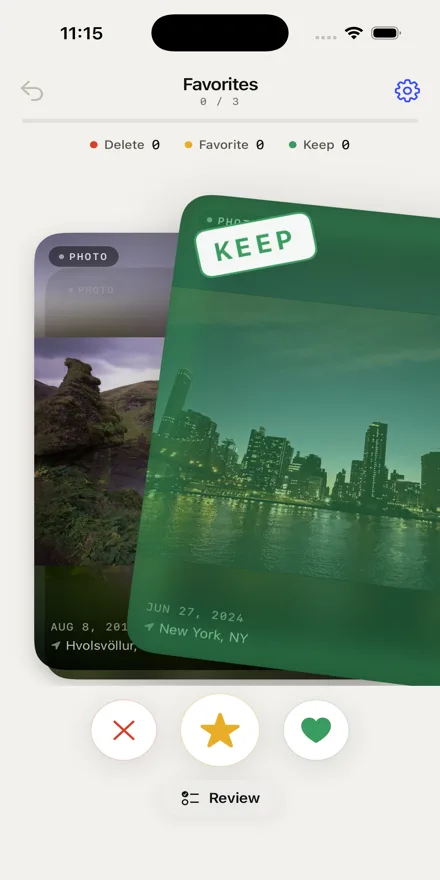
CleanRoll has a scan for exactly this case: screenshots older than a year, presented one at a time, newest decisions first.
- Install CleanRoll: Camera Roll Cleaner (iPhone, iOS 26.2 or later).
- Grant Photos access. Everything is analysed on the device; nothing is uploaded.
- Open the Old screenshots scan.
- Swipe left to bin, right to keep. Confirm the batch at the end — nothing is removed before that.
50 reviews per 24 hours are free. Unlimited is a one-time $7.99 unlock, not a subscription.
Frequently asked questions
Will deleting screenshots delete the original photos?
No. A screenshot is an independent image file — a picture of what was on the display at the moment you pressed the buttons. It has no link back to whatever it captured, so deleting it leaves the original photo, the message thread, the web page and the app screen exactly as they were.
The one case worth pausing on is the reverse: a screenshot of something that no longer exists anywhere else. A confirmation number from an email you later deleted, a QR code from a message thread that has since been cleared, a page from a site that has gone down. Those are genuinely the only copy, and they are why sweeping an entire album in one gesture is worth doing oldest-first rather than everywhere at once. If you are unsure, move the handful that matter into an album or into Notes before you clear the rest.
How do I stop taking accidental screenshots?
Almost all of them come from two places. The first is Back Tap — Settings → Accessibility → Touch → Back Tap — which fires when the back of the phone is knocked, including inside a bag. If you do not use it deliberately, set both Double Tap and Triple Tap to None. The second is the hardware combination itself: on Face ID iPhones a screenshot is the side button and volume up pressed together, which a pocket manages surprisingly often.
If the phone is in a thick case that holds the buttons under tension, that is usually the culprit, and a different case fixes it for good. Apple lists the current button combination for every model in Take a screenshot on your iPhone. Whatever the cause, the cleanup is the same — the Screenshots album collects them all.
Do screenshots take much space?
Individually, no. A screenshot is a PNG of the screen — typically a few hundred kilobytes for a page of text, a couple of megabytes for something dense and colourful. Against a 4K video clip measured in gigabytes, a single screenshot is nothing, and if your phone is full, screenshots are not why.
They matter for a different reason: volume. A few a day for three years is a few thousand images, and they sit in the main library alongside the photos you actually care about. That is what makes every other cleanup slower — scrolling Recents past a year of receipts to find the holiday you wanted to thin out. Clearing the Screenshots album is worth doing first not because it wins the most space, but because it is the fastest decision-per-tap in the library and it makes everything after it easier.
Can I delete screenshots but keep the ones with important information?
Yes, and it is the argument for reviewing rather than sweeping. Anything you genuinely need — a booking reference, a warranty, a serial number, a recipe — is worth moving somewhere it will actually be found later, because a camera roll is a poor filing cabinet. Two practical options: create an album ("Keep — receipts", say) and add them before you start deleting, or copy the text into Notes or Files, where it is searchable and survives any future cleanup.
iOS also makes this easier than it used to: Live Text lets you select and copy text straight out of a screenshot, so a confirmation code can become a Note in a few seconds. Once the keepers are out of the way, the rest of the album can be cleared in bulk without second-guessing. That is the whole trick — separate the handful that matter first, then stop being careful with the album.
Next: find the large videos, then the near-duplicate photos. Or start at what actually fills an iPhone.
CleanRoll is a free download from SLOCC LLC. Review 50 items per 24 hours, or unlock unlimited once for $7.99.
Download on App Store