Short answer: Photos has no "sort by size" option, which is why large videos survive every cleanup. Two ways around it. In Photos, open Collections → Media Types → Videos, where each thumbnail shows its duration — the long ones are the heavy ones, and tapping a video then swiping up shows its exact file size.
Faster: use a tool that reads file sizes directly and lists the biggest first, so the worst offenders surface in one pass instead of a scroll. Either way, check what you are deleting — a long clip is often a school concert or a wedding speech, not filler, and length alone does not tell you which. Deleted videos go to Recently Deleted for about 30 days, and the storage only comes back once that album is emptied. If you want to keep a clip without keeping it on the phone, copy it off and confirm it opens elsewhere before you delete the original.
Why can't I sort iPhone videos by size?
Photos is built around dates and memories, not file management, so it offers no size column. The closest built-in signal is duration, shown on every video thumbnail in Collections → Media Types → Videos.
Duration is a decent proxy but not exact: recording format matters as much as length.
| Recording setting | Roughly per minute | 10 minutes |
|---|---|---|
| 1080p HD at 30 fps | ~65 MB | ~0.65 GB |
| 4K at 30 fps | ~190 MB | ~1.9 GB |
| 4K at 60 fps | ~440 MB | ~4.4 GB |
Apple's own figures, shown in Settings → Camera → Record Video. A single 4K/60 clip of a birthday can outweigh a year of photographs.
How do I check a video's exact size?
- Open the video in Photos.
- Swipe up on it (or tap the info button).
- The info panel shows the file size, resolution and frame rate.
Fine for a handful. Painful across a library of hundreds.
How do I find the biggest videos in one pass?
CleanRoll's Large videos scan measures every video on the device and lists them biggest first, with the size on each card and the total at the top.
- Install CleanRoll: Camera Roll Cleaner (iPhone, iOS 26.2 or later).
- Grant Photos access. Sizes are measured on the device; nothing is uploaded.
- Open Large videos. The list starts with the single biggest file in your library.
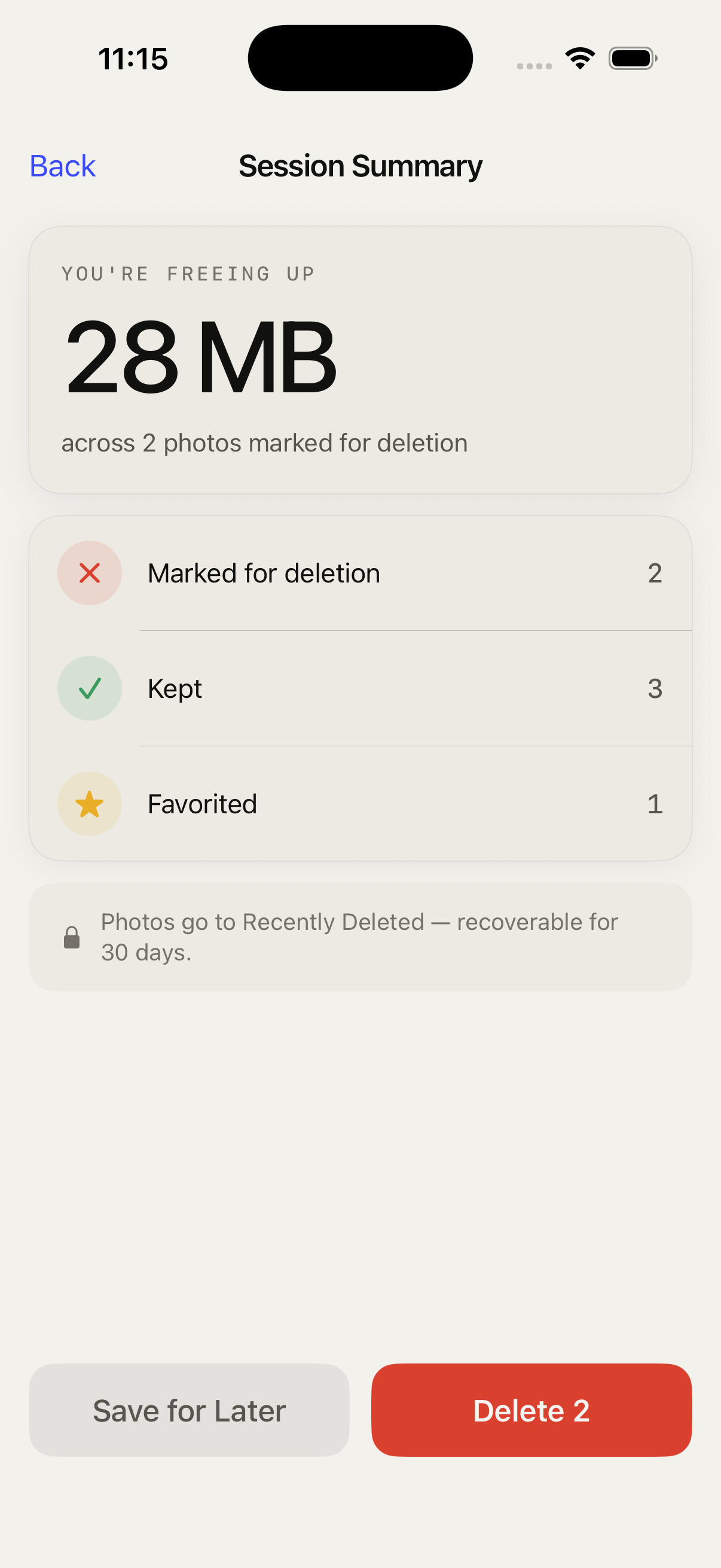
- Play anything you are unsure about, keep what matters, and confirm the batch.
50 reviews per 24 hours are free; unlimited is a one-time $7.99 unlock, no subscription.
Frequently asked questions
How do I stop videos filling my phone again?
Change what the camera records, because deleting is always downstream of that. Settings → Camera → Record Video lists every format with its per-minute cost printed underneath, which is the single most useful screen in iOS for this problem. Dropping from 4K/60 to 1080p/30 cuts roughly 440 MB per minute to roughly 65 MB — close to a sevenfold difference for footage most people only ever watch on a phone.
Two settings sit alongside it and are worth checking at the same time. Record Slo-mo has its own format, and slow motion is recorded at high frame rates, so it is expensive per second. And under Formats, High Efficiency (HEVC) roughly halves file sizes against Most Compatible; the only reason to avoid it is sharing with much older devices. Set it once and the problem stops growing.
Can I keep a video without keeping it on my phone?
Yes, and this is the right answer for the long clips you cannot bring yourself to delete — a concert, a wedding speech, a child's first steps. Copy it off the phone first: AirDrop to a Mac, plug into a computer, or upload to a cloud drive that is not iCloud Photos. Then open the copy where it landed and watch a few seconds of it. Only then delete the version on the phone.
Do the check before deleting, never after — a transfer that silently failed or produced a zero-byte file is not obvious from the source device, and once Recently Deleted expires there is no second chance. Note also that iCloud Photos is not this: it syncs rather than archives, so deleting on the iPhone deletes from iCloud too. Apple sets out that distinction in Manage your photo and video storage.
Do videos in messages count towards my storage?
They do, and they are one of the most commonly missed piles on a full phone, because they are invisible from the Photos app — a video someone sent you lives in the Messages thread, not in your library, unless you explicitly saved it.
Settings → General → iPhone Storage → Messages breaks it down by category, with Photos, Videos and GIFs and Stickers listed separately and a Review Large Attachments option that sorts the biggest first and lets you delete them in place. On a phone with years of group chats this is routinely several gigabytes. While you are there, Settings → Apps → Messages → Keep Messages lets you switch from Forever to 1 Year or 30 Days, which stops the pile rebuilding — though be aware it deletes the message text as well as the attachments, so choose it deliberately.
Does deleting a video free space immediately?
No. A deleted video moves to Recently Deleted and keeps occupying exactly as much storage as it did before, for 30 days, until that album clears itself. With video this is very visible: bin 8 GB of clips, check Settings, and the free space has barely moved. Photos → Collections → Utilities → Recently Deleted → Select → Delete All finishes the job immediately.
Give the storage screen a minute to recalculate afterwards, since it caches its figures and is slow on a full phone. And if iCloud Photos is on, the deletion syncs to iCloud and to your other devices as well, so make sure you really do not want the clip anywhere — this is the one case where 30 days of grace is genuinely load-bearing. Apple documents the recovery window in How to recover deleted photos.
Next: clear old screenshots, then review near-duplicate photos. Background reading: what actually fills an iPhone.
CleanRoll is a free download from SLOCC LLC. Review 50 items per 24 hours, or unlock unlimited once for $7.99.
Download on App Store